
Croner provides a series of regular reports on the HR Case Tracking service and its usage. These reports cover call times, system usage, region and location summaries, new issues, closed issues, and red flags.
Reports can be accessed at two locations within the product: as a panel on the Main Dashboard, and through the Reports page. Both locations are discussed below.
This Help topic contains the following information:
The Main Dashboard Reports Panel
Main Dashboard Reports Panel
The Reports panel on the Main Dashboard displays recently posted reports. Reports are divided into two categories: Call Reports, which document calls to the Croner Helpline, and Issue Reports, which document the Issues created within HR Case Tracker. Each list has its own View All... button, allowing you to move to fuller lists of the report type you select.

To view a report, click its title and use your browser's download dialogue to open or save the report to your computer.
Reports Page
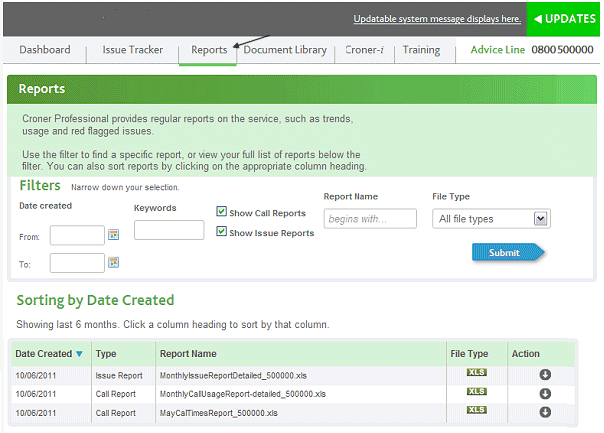
The main Reports page lists the last six months worth of reports in the list at the bottom of the page, with Filters which help to narrow the scope of reports displayed on the page. To access the Reports page from any location in Croner Professional, click Reports on the Main Navigation Menu.
For detailed information about using Reports, see the topics contained in this section of Help:
Comments
0 comments
Please sign in to leave a comment.