
The Main Dashboard is your primary starting point in Croner Professional. It displays all of the features included in this powerful product, from Issue Tracking to Reports and the Library of documents.

The sections below introduce each of the features of the Dashboard:
Navigation Links
The Navigation Links appear at the top right of every major page within Croner Professional.

The Admin link on this list leads to the Admin Functions page. All users can use this link to change their password. Users with various Admin privileges can use it to access User Maintenance and Document Management features.
Navigation Menu and Banner

The Croner Professional banner includes an updatable system message which displays to all users and can function as a link to the destination of your choice. To update the message, contact your Croner Consultant.
The main navigation links below the banner connect you to each of the main features of Croner Professional. The main features are also reflected in the structure of this Help system. For detailed information about each feature, follow these links:
Issue Tracker Panel
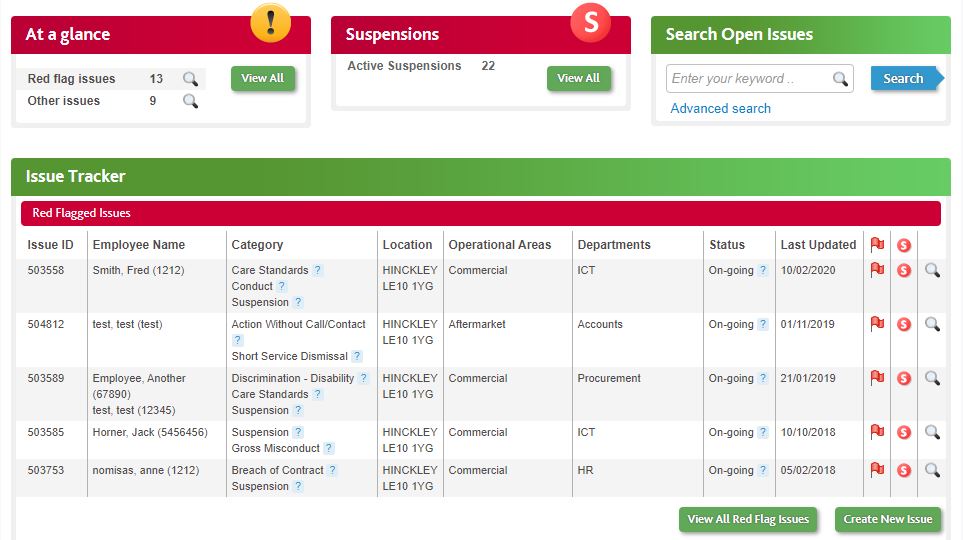
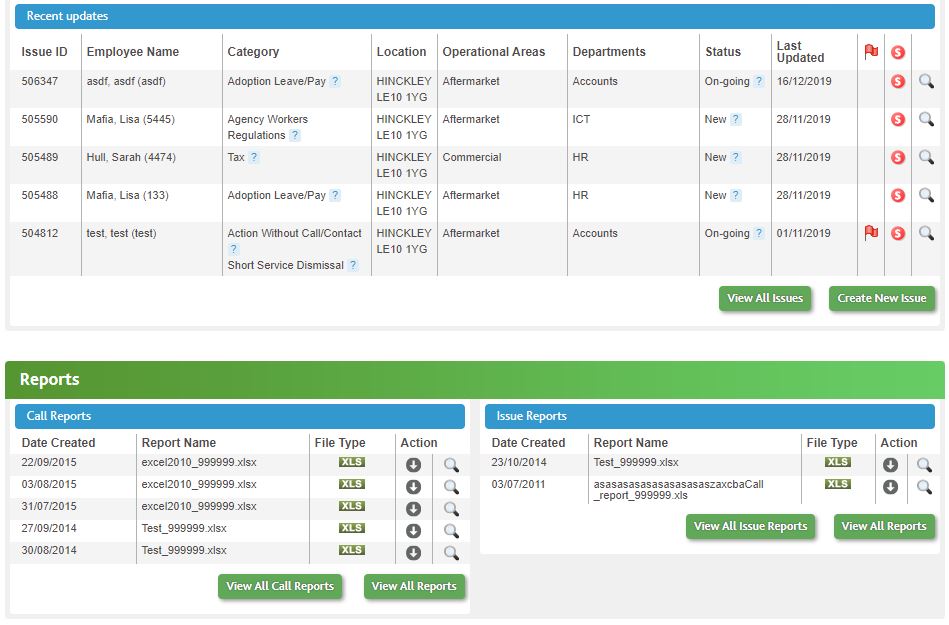
The Issue Tracker panel on the Main Dashboard displays the most recent red flagged and recently updated issues. Each list has its own View All... button, allowing you to move to the fuller list of issues of the type you select. Convenient Create New Issue buttons allow you to create an Issue directly from the Main Dashboard.

Other features of the Issue Tracker panel include:
- Mouse over ? icons to view Advisory Tips.

- Click the
 icon for any issue to open the Issue Detail page for detailed review or updating.
At a Glance Panel

Click View All to move to the Issue Tracker page and view all Issues from the last six months. Clicking the view icon ( ) for Red Flag Issues to view only issues with red flags; the Other Issues options shows all issues other than Red Flags.
Search Open Issues

The Search Open Issues panel searches through the Issue Notes fields for each of the open Issues, and returns Issues which contain your keywords. Type a keyword in the field and click Search to view a list of Issues containing the keyword in the Issues List on the Issue Tracker page.
Click the Advanced search link to move to the Issue Tracker page, where you can use the Filters to search issues by category, employee name, and other criteria.
Suspensions Panel

Click View All to view a list of Active Suspensions, from which you can select an issue to view on the Issue Detail page.
Reports Panel

The Reports Panel is the location for viewing Croner-generated reports covering significant statistics about your organisation's use of the service, including system usage, issue trends, and red-flags. Call Reports document calls to your Croner Helpline. Issue Reports document statistics about the Issues that have been entered into Croner Professional.
To view a report, click the title of the report in the Call Reports or Issue Reports section of the panel. The browser will prompt you to open the report with the appropriate software.
Use the View All ... buttons to move to the Reports page, where you can use Report Filters to search for particular reports.
Comments
0 comments
Please sign in to leave a comment.